> For the complete documentation index, see [llms.txt](https://docs.skolar.li/llms.txt). Markdown versions of documentation pages are available by appending `.md` to page URLs; this page is available as [Markdown](https://docs.skolar.li/knowledge-base/new-assessment.md).
# New Assessment
This screen allows organizations to create and configure assessments for their hiring needs or for their Participants by navigating **Knowledge Base⇒ New Qui**z under **Assessments** section. It allows the admin/facilitator to define assessment details, duration, enables scoring setup with total score and minimum pass score. This also includes security controls like question randomization, blocking right-click/dev tools, and proctoring before publishing.
**Skolarli supports 4 types of assessments.**
1. Knowledge Assessments
2. Skill Assessments
3. Coding Assessments
4. Case-Studies or Case let's
Assessment form
**Assessment Type as**
1. Multiple choice Questions
2. Yes/No Type
3. Mixed (MCQ & Yes/No)
4. AI Agent Interview
Fill the form and click Create Assessment
**Note:** Enable proctoring toggle will help admin to monitor Participant activity during the assessment attempt. This can be seen in candidate dossier under Hiring section, [click here](https://app.gitbook.com/o/MpwpdS7ddBcUfF6SyfSw/s/hbvtR5t4Lx9A580F0Dea/~/edit/~/changes/86/assessments/view-all)
**Assessment Template**
When the **Assessment Template** toggle is enabled, the page allows the user to create an assessment template that can generate a **fresh set of questions for each candidate**.
This is the same as the assessment creation flow described above. However, in the Question Pool section, users can:
**Configure the number of questions** to be selected from each difficulty level:
* Easy
* Medium
* Hard
**Define the marks** assigned to questions based on their difficulty level:
* Easy
* Medium
* Hard
Assessment Template
After the quiz is created, the system redirects users to the Add Questions page where user can add questions as needed.
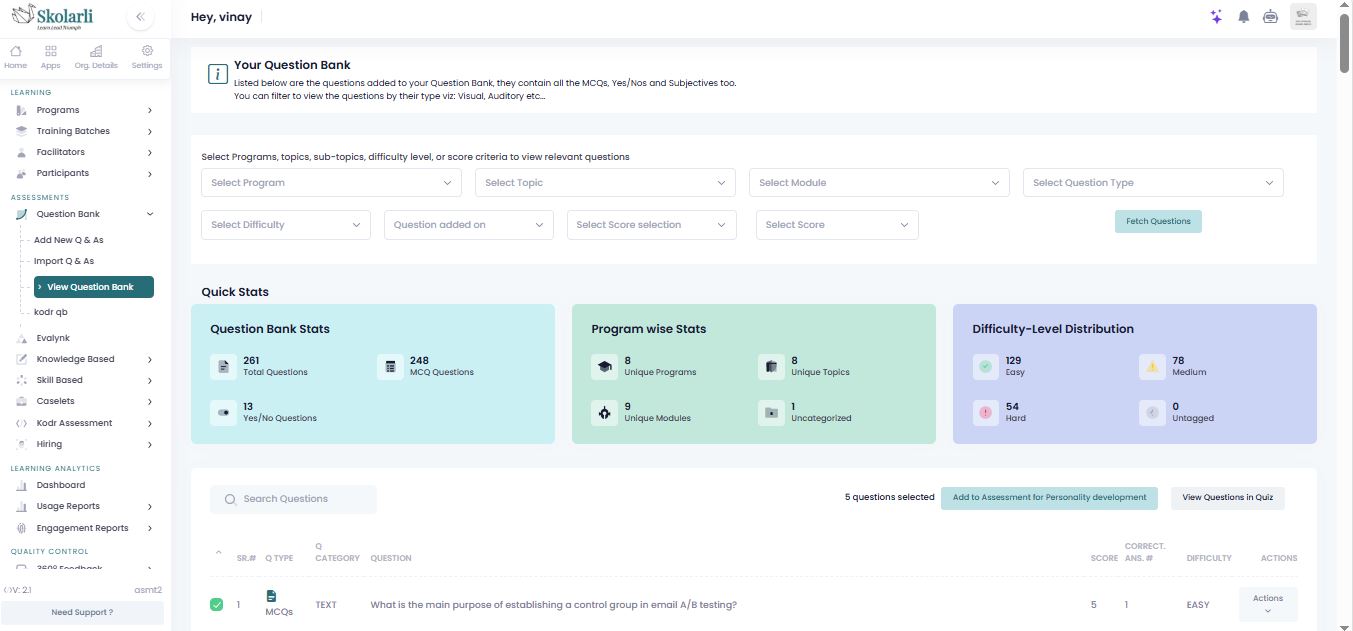
Select questions in View Question bank page
User can see "**Add to Quiz Name**" button. By clicking the button, questions are successfully added to quiz.
User can view the questions added to quiz by clicking on "**View Questions in Quiz**".


.png?alt=media&token=05c5eee6-4d4d-4789-8fd2-c46ebee25a4e)