> For the complete documentation index, see [llms.txt](https://docs.skolar.li/llms.txt). Markdown versions of documentation pages are available by appending `.md` to page URLs; this page is available as [Markdown](https://docs.skolar.li/hiring/manage-job-positions/action-menu/view-candidate/add-candidate/view-dossier/knowledge-assessment.md).
# Knowledge Assessment
Evaluate knowledge through Multiple-Choice questions, Yes-No or Mixed type of questions.
Click on Assessment will show Question-wise Analysis, Duration, Questions & Responses Proctoring & Violations Section, Audio & Transcription, Reviewer Notes.
**Assessment section**
Assessment header shows Assessment name, and Key metrics -Total questions, Score, Trust, Violations, Duration and status.
**Round Summary:**
Shows Scored marks, Attempted questions, Trust, Violations count, Duration, Integrity checks.
**Exam Journey**
Questions shown as Q1, Q2, Q3… with Time spent per question and Flags like rapid answering.
Below are Color indicators for questions:
* Green → Correct
* Red → Incorrect / Violations
* Grey → Not attempted / pending
Round Summary and Exam Journey
**Assessment Performance**** (Question-wise Analysis):** this shows detailed breakdown per question:
* Question type (MCQ or Y/N)
* Selected answer
* Correct answer (highlighted in green border) & Wrong answer (highlighted in red border)
* Correct answer selected (Background filled with Green) & Wrong answer selected (Background filled with Red)
* Result: Correct or Incorrect
* Violations count per question
* Question Type
Assessment Performance
Integrity checks, Violations and Screenshots
**Integrity Checks**
Integrity Checks are automated validations used to detect **suspicious or unfair behavior** during an assessment. This is tightly linked to the **Trust Score** and the “High Risk” flag.
There are multiple **Integrity Check’s:**
Webcam active, Microphone active, Full screen maintained, single person, Identity Verified, No Phone detected, no virtual cameras, Single IP, Browser Focus.
**Violations**
A violation is triggered when a candidate **breaks proctoring rules** or shows suspicious behavior during an assessment.
It helps recruiters evaluate assessment integrity and candidate authenticity.
**This section directly impacts:**
* Trust Score
* Risk Level (Low / Medium / High)
* AI Candidate Summary
**Common violation types**
* Face not visible
* Multiple faces detected
* Candidate leaves frame
* Switching browser tabs
* Copy/paste actions
* Right Clicks – Dev Tools (when off in assessment)
* Phone detected
* Noise detected
* Gaze away
* Mic Muted
**Snapshots**
Displays all snapshots captured during the assessment. Snapshots are captured periodically and during flagged events (like movement, tab switch, etc.) to ensure test integrity.
The snapshot strip loads with images after the assessment is completed.
Clicking a snapshot opens it in an enlarged modal view. This displays status, Time, Face match% & no of faces visible in the frame.
Status Label: “**Clean**” Indicates no suspicious activity detected in this snapshot.
Users can navigate between snapshots using the left and right arrows between multiple snapshots.
View of snapshot strip loads with images
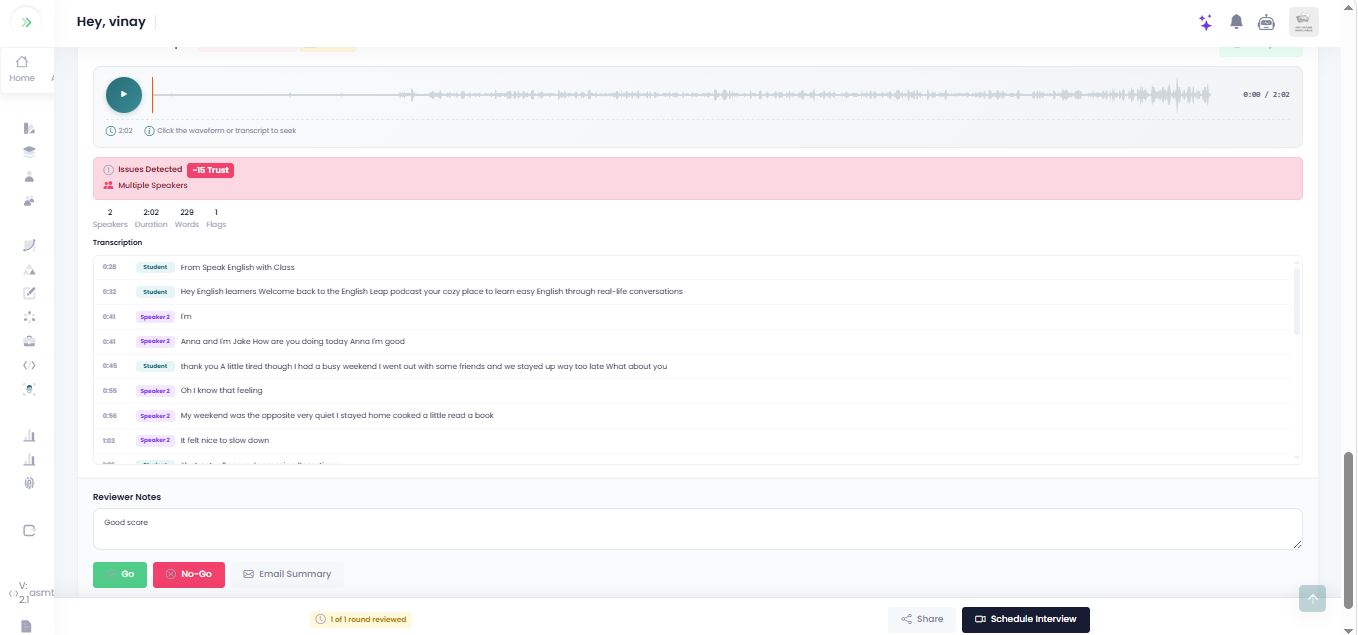
Audio Transcription and Run AI Analysis
**Run AI Analysis**
When admin click this button, the system triggers backend AI services to analyze the candidate’s assessment data and generate insights.
This section display below options
**Play button:** Plays the candidate’s recorded response
**Waveform:** Visual representation of audio (you can click to jump to a specific time)
**Duration:** Total length of the recording
**Analyzed:** Confirms AI processing is completed
**Trust Score Impact** (-15 Trust)
**Metrics** (number of speakers, duration, words, flags)
**Transcription Section**
* Shows AI-generated transcript of the audio
* Speaker labels:
1. Speaker 1→ Candidate
2. Speaker 2→ another detected voice
* **Each line includes:** Timestamp, Speaker tag & Spoken content
**Reviewer Notes:**
Allows the reviewer to add comments or feedback for the assessment round.
Have 2 Decision Buttons :
**Go / No-Go Decision:**
Enables the reviewer to mark the candidate as **Go** or **No-Go** after reviewing the assessment.
**Email Summary:**
Allows the reviewer to send or view an email summary of the assessment.
**History:**
Display the Review history
The Footer section display Rounds reviewed, share dossier link and schedule interview button.
**Reviewed Rounds -** show the number of rounds that the review comments given
**Share dossier link -**** coming soon**